Hiss, buzz, crackle, and background noise can sound similar at first, but they do not always share the same cause. Steady hiss often points to the microphone, preamp, or excessive gain. Hum and buzzing are more likely to come from power, grounding, or nearby electronics. Crackles usually suggest a loose or damaged connection.
The most reliable fix is to isolate the problem one part at a time. Start with microphone placement and input gain, then check power, cables, the recording environment, and finally any software processing.
Key Takeaways
- Move the microphone closer before raising the input gain.
- Identify whether the noise is hiss, hum, crackle, wind, or handling vibration.
- Swap one component at a time so you can find the failing part of the signal chain.
- Use the power source specified in the microphone manual; do not assume every shotgun mic needs 48 V phantom power.
- Treat gates, limiters, and noise reduction as finishing tools rather than substitutes for a clean recording.
Identify the Type of Noise First
Before changing settings, listen to a short recording through headphones. The character of the noise provides useful clues.
- Steady hiss: Often associated with microphone self-noise, preamp noise, a weak source level, or too much gain.
- Low hum or buzz: Commonly linked to electrical interference, grounding problems, power supplies, lights, or unbalanced connections.
- Crackles and dropouts: Often caused by a loose connector, damaged cable, dirty contact, failing adapter, or unstable power.
- Rhythmic ticks or bursts: May be radio-frequency interference from a phone, wireless transmitter, router, or other nearby device.
- Rumble: Usually comes from wind, footsteps, handling, traffic, air conditioning, or vibration through the stand.
Record ten seconds with nobody speaking. This room-tone sample helps reveal whether the noise is continuous or intermittent. Then repeat the recording after each change. Making several changes at once may hide the real cause.
What a Shotgun Microphone Can and Cannot Reject
A shotgun microphone uses a slotted interference tube in front of its capsule. Sound arriving from the sides reaches the capsule through different paths, producing frequency-dependent cancellation. This creates a narrow forward pickup area, usually described as a lobar or supercardioid/lobar pattern.
That design reduces some off-axis sound, but it does not magnify distant voices. A shotgun mic placed on a camera across the room still captures a relatively weak voice along with reflections and ambient noise. Directionality cannot replace close placement.
Longer interference tubes can maintain stronger directionality at lower frequencies than shorter tubes, but tube length alone does not determine recording quality. Longer microphones are also harder to position in small rooms and may respond poorly when strong reflections arrive from several directions.
Shotgun microphones can pick up sound from the rear as well as the front. Watch the full polar-pattern diagram in the microphone manual rather than assuming everything behind the mic will disappear.
A Step-by-Step Troubleshooting Process
- Save or photograph the current recorder and microphone settings.
- Record the microphone in the quietest available room.
- Move it closer to the speaker and reset the gain.
- Try a known-good cable and a different recorder input.
- Check the microphone’s required battery or phantom-power setting.
- Move phones, transmitters, chargers, lights, and power supplies away from the audio equipment.
- Test the microphone with another recorder or interface if one is available.
If the noise follows the microphone to another cable and recorder, the microphone or its power source becomes the main suspect. If it stays with one input, cable, or adapter, investigate that component instead.
Check the Microphone by Itself
Disconnect accessories that are not required for the test, including extension adapters, wireless transmitters, splitters, and camera preamps. Connect the microphone through the simplest compatible signal path.
If the mic has an internal battery, install a fresh battery and inspect the contacts for contamination or corrosion. A weak battery may cause reduced output, distortion, or unstable operation depending on the microphone design.
Swap Cables and Inputs
Replace the cable with a known-good equivalent. Gently move each connector while monitoring at a safe headphone level. If the sound crackles when a cable or plug moves, stop using that part until it can be repaired or replaced.
Test another input on the recorder. Confirm that the input is set for a microphone-level signal rather than line level, and make sure any plug-in-power, phantom-power, pad, or input-mode setting matches the connected microphone.
Check for Electrical and Radio Interference
Temporarily switch nearby phones to airplane mode and move wireless transmitters, routers, chargers, computers, LED lights, dimmers, and AC adapters away from the microphone and cable. Do not assume that every wireless device is responsible; turn devices off individually and listen for a repeatable change.
Keep microphone cables away from power cables where practical. If they must cross, crossing at roughly a right angle is preferable to running them together for a long distance.
Set Gain Without Amplifying the Problem
The preamp gain control raises the microphone’s analog signal to a usable level. The analog-to-digital converter is a separate stage in the recorder or interface. Raising the preamp gain does not create room noise, but it makes the microphone signal, ambient sound, microphone self-noise, and preamp noise more audible together.
Start by placing the microphone as close to the speaker as framing permits. Ask the speaker to deliver the loudest expected line, then adjust the input trim while watching the recorder’s meters.
A common approach for 24-bit field recording is to keep normal dialogue near -20 dBFS with louder speech peaking around -12 dBFS. This is a starting point, not a rule for every recorder. Leave more headroom when the speaker’s volume is unpredictable, and follow any level guidance in the recorder manual.
Do not raise input gain simply to make the headphone feed louder. Use the separate headphone-volume control for monitoring. For a more detailed setup process, see how to set gain and prevent clipping with on-camera microphones.
When High Gain Becomes a Warning Sign
If the recorder needs nearly all of its available gain for ordinary speech, check the following:
- The microphone may be too far from the speaker.
- The recorder may be set to line input instead of microphone input.
- A low-output microphone may be paired with a noisy or unsuitable preamp.
- The mic may not be receiving the required power.
- An incorrect adapter or damaged cable may be reducing the signal.
Reducing gain alone will make the hiss quieter, but it will also make the voice quieter. The useful fix is to improve the voice level reaching the microphone or correct the weak point in the signal chain.
Check Phantom Power, Batteries, and Connector Types
Many professional XLR shotgun microphones are condenser models that require phantom power, commonly 48 V. Others use an internal battery, a lower phantom voltage, plug-in power, or a proprietary connection. Check the microphone manual rather than enabling power by default.
If phantom power is required, confirm that the recorder supplies the correct voltage and that the cable is fully balanced and wired correctly. Turn monitoring levels down before connecting, disconnecting, or changing phantom-power settings to avoid loud transients.
Battery-powered microphones may need phantom power switched off. Some models can operate from either source, while others cannot. The practical differences are covered in the guide to 48 V phantom power and shotgun microphones.
For 3.5 mm microphones, verify whether the camera, phone, adapter, and microphone use TRS, TRRS, or another connector arrangement. A plug that physically fits is not necessarily electrically compatible.
Improve Placement Before Reaching for Software
Microphone distance is one of the strongest controls over hiss and background noise. Moving the mic closer increases the direct voice level relative to the room, allowing you to use less preamp gain.
For dialogue, position the shotgun just outside the frame and aim it toward the mouth or upper chest. Placement from above often keeps the microphone clear of the speaker’s breath and reduces pickup from the floor, but placement from below may work better when the ceiling is reflective or the framing demands it.
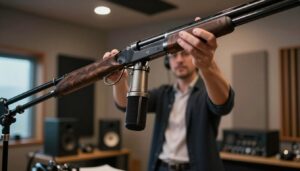
A camera-mounted shotgun is convenient, but it remains tied to the camera position. A boom pole lets the microphone stay closer to the person even when the camera moves back. The tradeoffs are explained in the comparison of boom-pole and on-camera mounting.
Avoid Aiming at Reflective Surfaces
Do not aim the rear or side pickup areas toward a noisy appliance, crowd, or hard reflective surface when another angle is available. Tile floors, bare walls, windows, and low ceilings can reflect off-axis sound into the interference tube, making dialogue sound hollow or uneven.
Monitor while making small changes in height and angle. Moving the microphone a few inches may alter the balance between direct speech and reflected sound more effectively than changing an equalizer later.

Control Wind and Handling Noise
Wind noise is not electrical static. Air moving across the microphone openings creates strong low-frequency turbulence that can overload the capsule or preamp. Fast boom movements can cause similar problems even on an otherwise calm day.
A foam windscreen is useful for light air movement and indoor boom swings. Stronger outdoor wind generally requires a properly sized basket or blimp system, often with a synthetic-fur cover. The article on foam windscreens versus furry wind protection explains when each type is appropriate.
Handling noise travels through the camera, stand, boom, or cable into the microphone body. Use an isolation mount designed for the microphone’s diameter and weight. Secure the cable so it cannot strike the pole or tug on the connector, but leave enough flexibility for the suspension to work. See why a shotgun microphone needs a suitable shock mount for more setup guidance.
Reduce Noise in the Recording Environment
Pause and listen to the room before recording. Air conditioners, refrigerators, computers, projectors, fluorescent fixtures, traffic, and plumbing may be more noticeable through headphones than they seem in person.
Switch off equipment only when it is safe and practical. If a device must remain on, move the microphone and speaker farther from it, place the noise source in a weaker part of the pickup pattern, or record during a quieter period.
Soft furnishings, thick curtains, moving blankets, rugs, and purpose-built absorbers can reduce reflections. They do not repair cable hum or electronic hiss, but they can make dialogue more direct and reduce the temptation to use aggressive processing.
A small untreated room is not automatically quiet. Strong close reflections can color the off-axis sound of a shotgun microphone, so a different microphone position may help more than adding a small piece of thin foam.
Use High-Pass Filters, Gates, and Limiters Correctly
High-Pass Filters
A high-pass filter, also called a low-cut filter, reduces low-frequency energy. It can help with wind rumble, handling vibration, distant traffic, and some HVAC noise. It will not remove broadband hiss, high-frequency interference, or cable crackles.
Choose the lowest filter setting that solves the problem without thinning the voice. If both the microphone and recorder have low-cut filters, remember that their effects may combine.
Noise Gates
A gate reduces the track level when the signal falls below a threshold. It can hide steady room noise during pauses, but it cannot remove hiss underneath spoken words.
Set the threshold conservatively. An aggressive gate may cut off quiet syllables, breaths, and natural room decay, making dialogue sound abrupt. Expansion, which turns the background down rather than muting it, can sound more natural.
Limiters
An input limiter reduces unexpected peaks before they overload the next stage of a compatible recorder. It is useful when a speaker may suddenly shout, but it is not a replacement for correct gain.
A limiter cannot repair distortion that has already occurred in the microphone capsule, an earlier preamp stage, an adapter, or the camera input. If the recording sounds distorted even though the final meter stays below 0 dBFS, inspect earlier parts of the signal chain.
Clean Up Remaining Hiss in Post-Production
Once placement, gain, cables, power, and the room are under control, software can reduce residual noise. Keep an unprocessed copy of the recording before applying restoration.
- Select a short section containing only the unwanted background sound.
- Use it as a noise reference if the restoration tool supports that method.
- Apply a small amount of reduction and listen to complete sentences.
- Compare the processed and unprocessed versions at matched playback volume.
- Back off if consonants become dull, watery, metallic, or unstable.
Clicks caused by one brief cable movement may be easier to repair manually than with broadband noise reduction. A gate can reduce noise between phrases, while equalization may soften a narrow buzz or tonal problem. None of these tools can fully reconstruct speech hidden beneath severe noise or clipping.
Maintain the Microphone and Accessories
Disconnect the microphone before cleaning it. Wipe the exterior gently with a soft cloth, following the manufacturer’s product-specific instructions. Avoid saturating switches, vents, connectors, or interference-tube slots.
Do not touch or apply liquid directly to a condenser capsule. Do not direct high-pressure canned air into the microphone unless the manufacturer specifically instructs you to do so. Removable foam windscreens should be cleaned only by an approved method and allowed to dry completely before reinstallation.
Inspect cables, connectors, battery compartments, shock-mount bands, and windscreens regularly. Replace deteriorated foam, stretched suspension parts, and cables that crackle when flexed.
Store the microphone in a clean, dry case after it has returned to normal room conditions. Remove disposable batteries before long-term storage when the manufacturer recommends it.
Quick Diagnostic Checklist
- Is the microphone close enough to the speaker?
- Is the input set to microphone level?
- Does the mic have the correct battery, plug-in power, or phantom power?
- Are the cable and adapters fully compatible?
- Does the noise disappear with a different cable or recorder input?
- Does it stop when nearby electronics or lights are switched off?
- Is the apparent static actually wind or mechanical vibration?
- Are normal dialogue levels leaving reasonable headroom?
- Can a high-pass filter reduce the problem without thinning the voice?
- Does the noise remain when the microphone is tested in another room?
Conclusion
Clean shotgun-microphone audio begins with a strong direct signal. Keep the microphone close, aim it carefully, and set the input gain from the loudest expected performance.
If noise remains, diagnose it systematically. Test the cable, input, power source, nearby electronics, and room one at a time. Use wind protection and suspension for physical noise, and reserve gates, limiters, and restoration software for the problems those tools are designed to solve.
FAQ
How do I reduce steady hiss from a shotgun microphone?
Move the microphone closer, confirm that the recorder is using a microphone-level input, and reset the preamp gain. Then test the mic with another cable and input. If the hiss follows the microphone through every test, compare its self-noise and sensitivity with the needs of the recording.
Why does my microphone crackle when the cable moves?
The cable, connector, adapter, or solder joint may be loose or damaged. Replace one part at a time with a known-good equivalent. Do not continue using a cable that produces loud transients when flexed.
Does a longer interference tube capture sound from farther away?
Not in the way a telephoto lens enlarges a distant image. A longer tube can provide stronger off-axis rejection at lower frequencies, but the wanted sound still becomes weaker as the microphone moves away. Close placement remains important.
What recording level should I use for dialogue?
For 24-bit field recording, normal dialogue near -20 dBFS with louder peaks around -12 dBFS is a practical starting point. The correct target depends on the recorder, delivery requirements, and how unpredictable the speaker is.
Should I enable 48 V phantom power?
Enable it only if the microphone manual says the mic requires or accepts it. Other microphones may use a battery, plug-in power, a lower phantom voltage, or no power at all.
Can a low-cut filter remove hiss?
No. A low-cut or high-pass filter targets low-frequency energy such as rumble, wind, vibration, and some HVAC noise. Broadband hiss extends much higher in frequency and usually requires a better signal path or careful noise reduction.
Can phones and wireless devices interfere with a wired microphone?
They can under some conditions. Move wireless devices away from the microphone, cable, recorder, and adapters, then disable them individually to see whether the interference changes.
Will acoustic treatment remove electronic static?
No. Treatment reduces room reflections and reverberation. Electrical static, hum, and crackle require attention to power, cables, grounding, shielding, and compatible connections.
Should I use a noise gate while recording?
Use one only when you can monitor its effect carefully. A gate may reduce noise during pauses, but an aggressive threshold can remove quiet words or make room tone pump unnaturally. Recording an unprocessed track provides more flexibility.
Where should a shotgun microphone be positioned for dialogue?
Place it as close as framing permits, usually just outside the shot, and aim it toward the mouth or upper chest. Monitor from above and below because the quieter angle depends on the room, background, and reflective surfaces.
Why does the microphone sound like static outdoors?
The sound may be wind turbulence rather than electronic static. Fit suitable wind protection, stop the microphone from moving rapidly through the air, engage an appropriate high-pass filter, and check the result through headphones.
How should I clean a shotgun microphone?
Disconnect it and follow the manufacturer’s instructions. Use a soft cloth on the exterior, keep liquid away from the capsule and interference-tube openings, and let removable windscreens dry completely before reinstalling them.
Sources and further reading

The FieldMic Pro Editorial Team creates practical, research-based guides about microphones, recording techniques, audio equipment, and sound troubleshooting. Our articles are reviewed using official documentation, technical references, and clearly identified sources.